Webinar on demand: AI-Powered Modernization of OpenEdge Applications with the SmartComponent Library Watch now!


Consultingwerk's First VS Code Extension for OpenEdge
Manage PASOE servers directly in VS Code – our new extension streamlines workflows for OpenEdge developers.

5 min read
Effortless PASOE management – directly within VS Code!
We are excited to announce the release of our PASOE Manager Extension for Visual Studio Code - a tool specifically designed to empower OpenEdge developers. At Consultingwerk, we have always been committed to providing cutting-edge solutions that help developers streamline their workflows and enhance their productivity. This new extension is the perfect example of that dedication, providing a seamless experience for managing PASOE (Progress Application Server for OpenEdge) environments directly within VS Code.
Why the PASOE Manager Extension?
Managing PASOE instances and sessions can often be time-consuming and requires frequent context switching between different tools and interfaces. With the PASOE Manager Extension, we bring all these capabilities right into the heart of your development environment—Visual Studio Code. This means you can monitor and manage PASOE servers directly from your IDE – specifically during development – providing a smoother, more integrated development experience.
What Does the PASOE Manager Extension Offer?
The PASOE Manager Extension is packed with features that are designed to make your development process more efficient and less error-prone. Here’s a quick overview of what you can expect:
Real-Time Insights: View all running PASOE instances and active sessions in real-time, so you can quickly identify the status of your servers and ensure everything is running smoothly.
Efficient Management: Trim agents with ease and start new agents by sending a simple ping request, all within the VS Code interface. This allows you to manage your development environment without interrupting your workflow.
Seamless Integration: Everything is integrated into your VS Code environment, meaning there’s no need to switch between tools or interfaces. This allows for a smoother, faster development process, keeping you focused on what really matters—your code.
Why This Extension Matters to OpenEdge Developers
OpenEdge developers face unique challenges when it comes to managing and optimizing PASOE application servers. With the increasing complexity of applications, it is critical to have tools that allow you to monitor, adjust, and optimize your development environment quickly and efficiently. The PASOE Manager Extension does just that, providing a powerful yet simple solution that allows developers to focus on what they do best—coding.
Get Started Today!
Ready to try the PASOE Manager Extension for Visual Studio Code? Download it now and start improving your PASOE management experience. And don’t forget to check back for future updates and new features!
The extension is available under "PASOE Manager Extension"
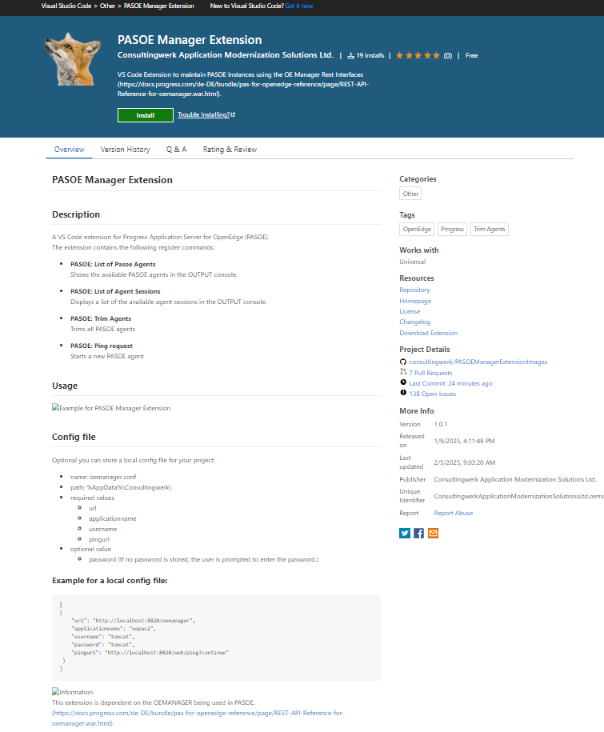
Once the extension is installed, you can access the following commands from VS Code:
Press Ctrl + Shift + P, and the following commands will be available:
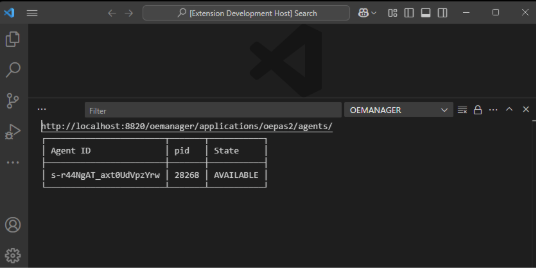
PASOE: List of PASOE Agents
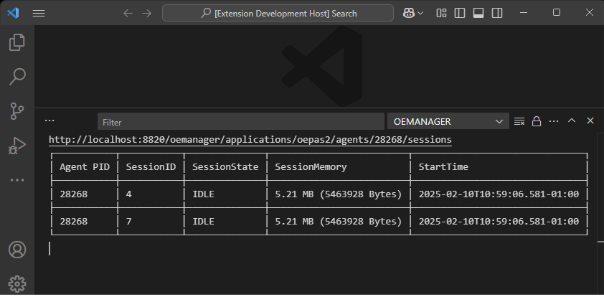
PASOE: List of Agent Sessions
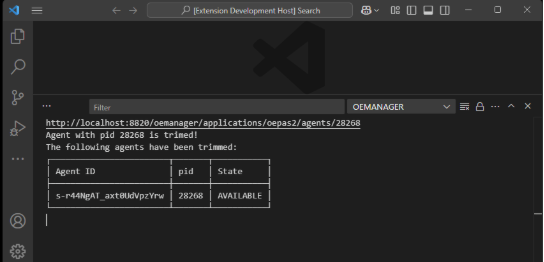
PASOE: Trim Agents
PASOE: Ping request
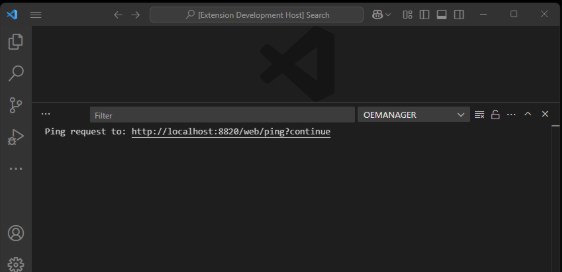
Settings:
1. Settings from Config File:
You can provide a custom config file named "oemanager.conf" in the following path:
📂 *%AppData%\Consultingwerk*
This config file should include the following values:
(The password is optional—if not provided, VS Code will prompt for user credentials.)
[
{
"url": "http://localhost:8820/oemanager",
"applicationname": "oepas2",
"username": "tomcat",
"password": "tomcat",
"pingurl": "http://localhost:8820/web/ping?continue"
}
]
2. Settings from VS Code:
If no config file is available, the settings from VS Code will be used instead.
You can access these settings by pressing Ctrl + ,
The configuration can be adjusted under:
Extensions → OEMANAGER
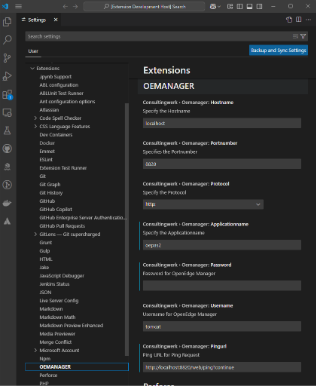
Default Values:
Hostname: localhost
Port Number: 8820
Protocol: http
Application Name: (no default value, must be entered manually)
Username: tomcat
Password: tomcat
Ping URL: http://localhost:8810/web/ping?continue
As with the config file, the password is optional - if no password is provided, VS Code will prompt the user for credentials.
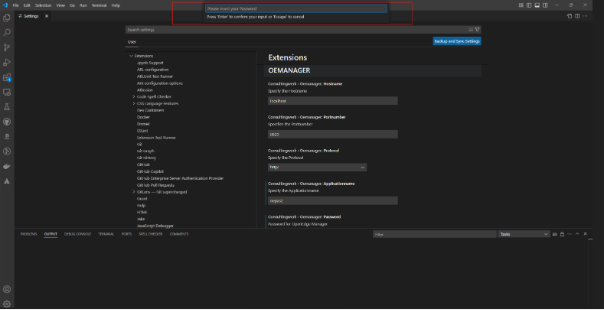
Try It Now - Experience the Future of OpenEdge Development in VS Code!
Start building smarter and faster today.
Download the Extension from the Visual Studio Marketplace https://marketplace.visualstudio.com/items?itemName=ConsultingwerkApplicationModernizationSolutionsLtd.oemanager
We’d Love Your Feedback!
Be part of shaping the OpenEdge development experience in VS Code.
Share your thoughts or request features info@consultingwerk.de!